



How to Use Mazda’s Head-Up Display
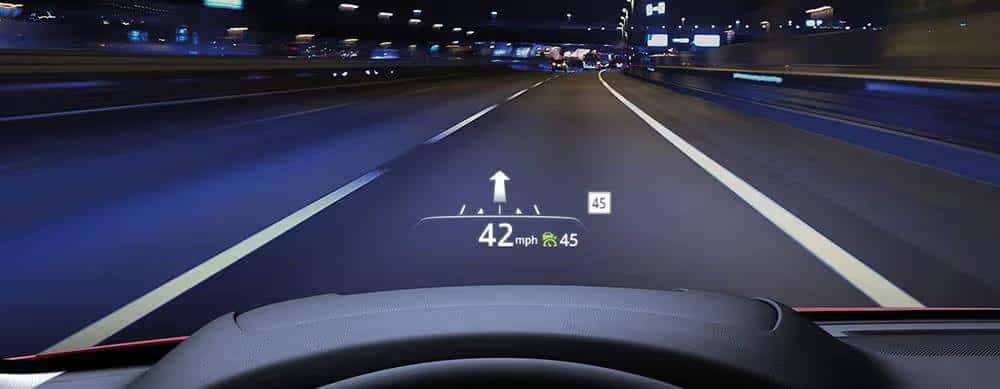
Your eyes should stay on the road, not darting between your dashboard and windshield. At Sport Mazda South, we highlight how Mazda’s Head-Up Display projects critical driving information directly into your field of vision, eliminating split-second distractions that add up over every drive. The Active Driving Display lets you monitor speed, navigation, and safety alerts without shifting focus from what’s ahead.
What Is Mazda’s Head-Up Display and Why It Matters
The Mazda Head-Up Display projects essential driving information onto your windshield, keeping your eyes on the road while staying informed. A small dashboard-mounted projector creates a clear, focused image that appears to float in your direct line of sight, positioned just below your normal viewing angle.
Your brain processes the projected information without the refocusing time required when looking down at traditional gauges. The Mazda HUD displays current speed, navigation directions, traffic sign recognition data, and safety alerts. By minimizing visual distractions, it reduces accident risk while maintaining your awareness of traffic conditions, pedestrian movement, and road hazards.
Which Mazda Models Feature Head-Up Display
Active Driving Display comes standard or optional across multiple Mazda model lines: the Mazda3, Mazda6, CX-3, CX-5, CX-9, CX-30, CX-50, CX-70, and CX-90. Availability varies by trim level, model year, and region.
The CX-5 heads up display appears on Signature and Carbon Edition trims. You’ll find it on CX-9 Signature trim levels, while the Mazda6 includes it on Grand Touring Reserve and Signature trims. The CX-30 features the display on Premium and Turbo variants, and the Mazda3 offers it on Premium Package and Turbo configurations.
When shopping, confirm which trim level includes the feature as standard equipment versus optional add-on, since availability changes between model years.
How to Set Up and Activate Your Mazda HUD
Initial System Activation
Your Mazda HUD activates automatically when you start the vehicle (assuming the previous driver left it enabled). The display powers up within seconds, projecting a startup screen before transitioning to regular driving information. If nothing appears, the system might be toggled off or brightness may be set too low. To activate the HUD if it’s been turned off, press the HUD button on the dashboard, or navigate to the HUD settings through your infotainment system’s settings menu and toggle the display on.
Before driving, familiarize yourself with default settings while parked. The projection appears centered in front of the steering wheel. You should see it clearly without straining or dramatically adjusting your seating position.
Using the Dashboard Controls
Access HUD controls through the infotainment system and a dedicated button near the steering wheel. The physical control, typically positioned on the dashboard’s left side, lets you turn the system on or off without navigating screen menus.
For detailed adjustments, access Settings on your center console screen, then navigate to the Display tab. Here you’ll find options for brightness, height, display angle correction, navigation display, street information, and system reset. Most drivers configure initial settings here, then rarely return unless lighting conditions change or multiple drivers share the vehicle.
Customizing Your HUD Display Settings
Adjusting Position, Height, and Brightness
Proper positioning makes the difference between a helpful tool and a distraction. Start with brightness adjustment since lighting conditions dramatically affect visibility. The system includes automatic brightness adjustment responding to ambient light sensors, but you can override with manual controls. In bright sunshine, use maximum brightness. At night, reduce it significantly to preserve night vision.
Height adjustment determines where information appears in your field of vision. Position the projection just below your normal sight line, visible with minimal eye movement. The adjustment range accommodates different driver heights and seating preferences. Position setting shifts the display left or right within its projection zone. Center positioning works for most people, but adjust horizontal placement if you find yourself unconsciously moving your eyes to see information.
Selecting What Information to Display
Your Mazda HUD lets you choose what information appears while driving. Access the customization menu to add or remove specific data. Speed readout remains the most popular choice, displaying your current velocity in large, readable numbers.
Navigation information shows turn-by-turn directions when you have an active route programmed, displaying upcoming turns with distance countdown and directional arrows. Traffic sign recognition shows detected speed limits. Safety alerts include lane departure warnings, forward collision warnings, and blind spot notifications when these systems detect potential hazards. Customize based on what genuinely helps your driving rather than displaying everything available.
Understanding HUD Symbols and Navigation Features
Speed, Safety, and Warning Indicators
Mazda heads up display symbols use intuitive iconography that becomes second nature quickly. Your speed appears as the largest element, positioned centrally with clear numerals. Many drivers appreciate seeing both actual speed and detected speed limit displayed together.
Safety system icons appear when warnings trigger. A vehicle outline with radiating lines indicates forward collision warning. Lane departure symbols show a vehicle drifting between lane markers. Blind spot warnings appear as indicator lights or arrows pointing to the side where another vehicle occupies your blind spot.
Warning indicators demand immediate attention through color and placement. Red symbols typically indicate urgent situations requiring immediate action. Yellow indicators suggest caution or upcoming issues. Green symbols confirm system operation, like cruise control engagement.
Navigation Prompts and Turn-by-Turn Directions
When you program a destination through your Mazda Connect infotainment system, relevant directions automatically appear on your windshield as you approach each maneuver. The display shows upcoming turn distances counting down as you get closer, with directional arrows indicating left, right, or straight ahead.
The system handles complex intersections with lane guidance when you need specific lane positioning for upcoming turns. Interstate exchanges receive special treatment with clear indicators for exit ramps and numbered highways. Audio navigation prompts coordinate with visual HUD information, reinforcing directions through multiple senses.
Troubleshooting Common Mazda HUD Issues
Fixing Display Brightness and Visibility Problems
If your Active Driving Display appears too dim or invisible, check brightness settings first. Automatic adjustment usually works well, but unusual lighting conditions occasionally require manual override. Extremely bright sunlight or specific sun angles can temporarily wash out the projection.
One visibility issue involves polarized sunglasses, which can reduce HUD visibility. If wearing polarized lenses, you may need to adjust brightness settings higher or switch to non-polarized eyewear.
Resolving Blurry or Missing Information
Blurry or doubled projections usually result from windshield contamination rather than system malfunction. Clean the interior windshield surface where the projection appears using glass cleaner and a microfiber cloth. Avoid products leaving residue or film, as these interfere with projection clarity.
If expected information doesn’t appear, verify you’ve enabled specific information types through the customization menu. Navigation directions only appear with an active programmed route. Speed limit recognition requires traffic sign recognition enabled in vehicle settings. If specific symbols never appear, confirm your Mazda model includes the underlying safety systems generating those alerts.
What to Do When the HUD Won’t Turn On
System startup failures happen rarely. If nothing projects when you start your vehicle, verify the system isn’t turned off using the dashboard control button. Check whether the display appears extremely dim rather than completely off by testing in darkness. Remember that if your audio system is removed, the Active Driving Display cannot be operated.
Best Practices for Safe Driving with Your Mazda HUD
Always Adjust Settings Before You Drive
Make all adjustments while your vehicle is parked or stopped, never while driving. This critical safety practice appears throughout Mazda’s official guidance and prevents dangerous distraction during travel. Configure brightness, position, and information display before starting your drive.
Using the HUD While Driving
Glance at the display briefly when you need information, then return full attention to the road ahead. The technology provides quick reference data, not a replacement for proper forward vision. The projection positioning requires minimal eye movement, but conscious attention remains essential.
Keep your windshield clean inside and out. Projection quality depends on clean glass, and external windshield cleanliness affects overall forward visibility. Pay particular attention to the HUD projection zone, as minor smudges create distracting reflections or reduce clarity.
Know Your Symbols Before You Need Them
Learn symbol meanings before encountering them during stressful driving situations. Familiarize yourself with Mazda heads-up display symbols by reviewing your owner’s manual. Understanding what each icon means beforehand prevents confusion when warnings appear during busy traffic or challenging conditions.
Experience Mazda’s Head-Up Display at Sport Mazda South
Seeing the Mazda Head-Up Display in action beats reading about it. We invite you to experience this technology firsthand through test drives and detailed demonstrations at Sport Mazda South. Our team will walk you through setup procedures, demonstrate available display options, and ensure you’re comfortable with the controls.
Visit us to explore current Mazda models equipped with Head-Up Display technology. Our sales professionals help identify which trim levels include the HUD as standard equipment and which require option packages. Contact us to schedule your test drive and discover how keeping information at eye level transforms every journey.
0 comment(s) so far on How to Use Mazda’s Head-Up Display